
The AppTech Customer Portal allows customers to log support concerns, check ticket status, communicate with the support team, and complete customer satisfaction surveys. The portal is available 24/7, while responses are handled during regular support hours from Monday to Friday, 8:30 AM to 6:00 PM.
This guide explains how to create a support ticket, check existing issues, and use the chatbot for faster resolution.
🎥 Watch the step-by-step tutorial below:
How to Create a Ticket in AppTech Customer Portal
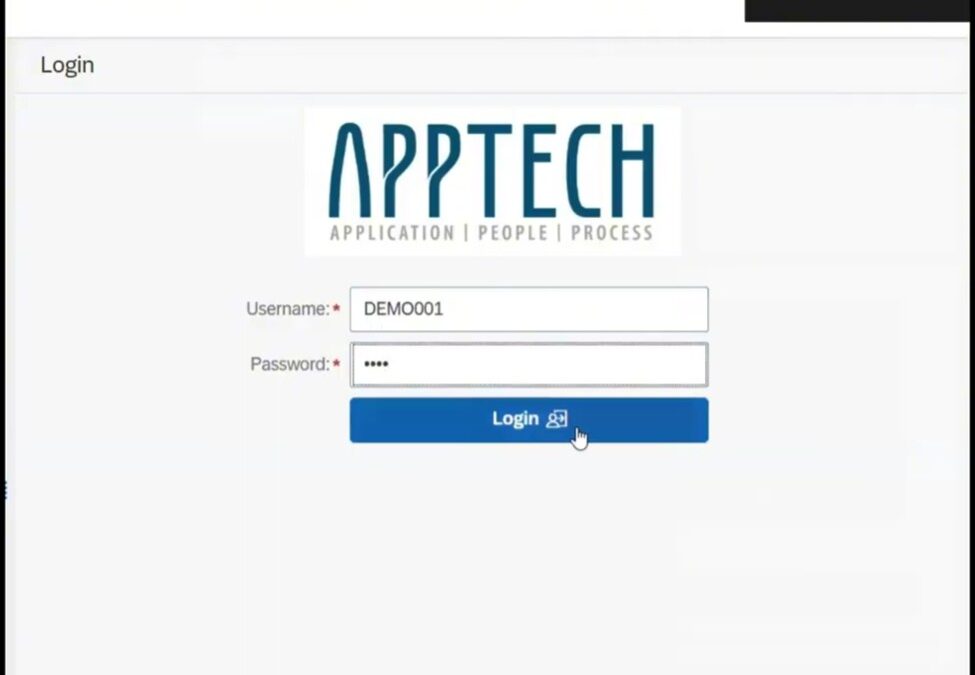
To begin, open any browser and access the APPTech Customer Portal using the provided link. Log in using your assigned user ID and password.
Before creating a ticket, it is recommended to first use the APPTech Chatbot. Simply enter the issue, error message, or concern in the search bar. The chatbot can suggest relevant knowledge base articles, downloadable PDFs, or redirect you to the SAP Help Portal for further assistance.
If the issue remains unresolved, proceed with ticket creation.
When creating a ticket, complete the following details:
- Contact Person – the person raising the concern
- Priority Level – based on business impact
- Subject – module + exact error message
- Detailed Description – step-by-step explanation of the issue
- Issue Type and Subtype
- Attachments – screenshots, logs, or supporting documents
Once all fields are completed, click Submit.
Priority Levels for Support Tickets
The AppTech support ticket priority levels are based on issue severity.
- Low – minimal or no business impact
- Medium – normal transactions affected
- High – critical transactions blocked
- Very High – emergency issues causing severe business disruption
Selecting the correct priority helps ensure the appropriate response time.
How to Check Logged Issues
To check existing concerns, go to the Record tab inside the AppTech Customer Portal.
This section displays all tickets organized by status.
To open a ticket:
- highlight the row
- click View
From here, you can monitor status updates, view resolutions, communicate via chat, or cancel the ticket if the issue has already been resolved.
Customer Satisfaction Survey
Once a ticket is closed, the system will request a customer satisfaction survey.
This survey evaluates:
- accuracy of solution
- response time
- communication quality
- overall support experience
Important note:
If you have more than 3 pending surveys, you will not be able to create a new ticket until all pending surveys are completed.
How to Logout
To logout, go to the upper right corner, click your company name or profile, and select Logout.
Proper use of the AppTech Customer Portal ticketing system helps ensure faster support resolution and better issue tracking.