
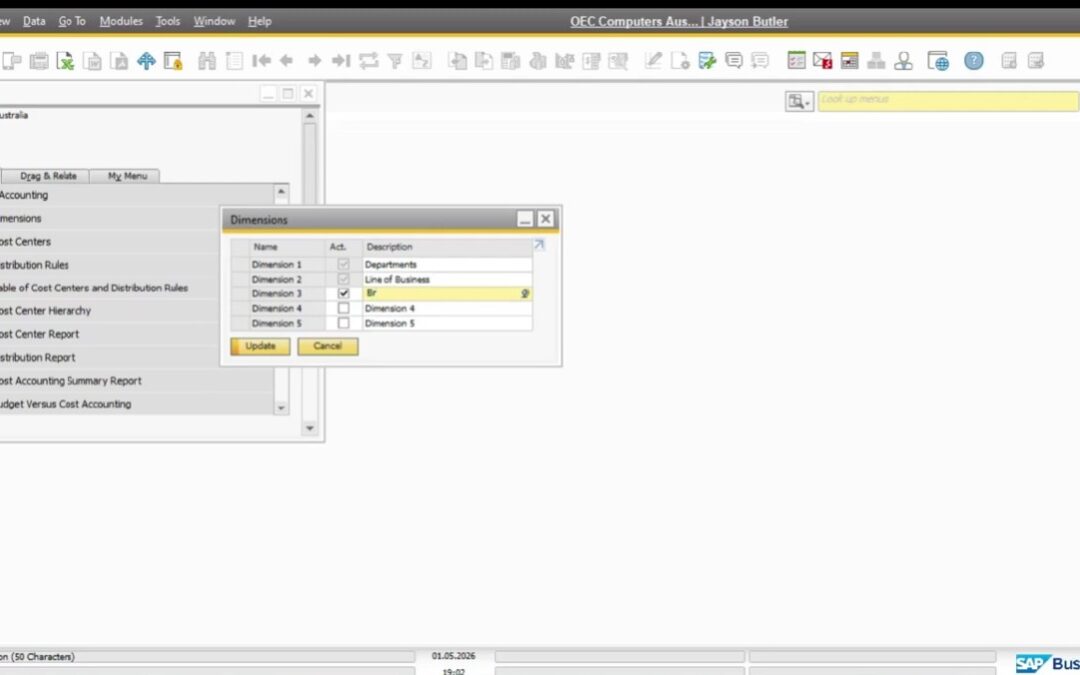
Configuring dimensions in SAP Business One allows businesses to track expenses, revenue, and profitability by department, project, or cost center. A proper SAP B1 dimensions setup improves cost analysis, strengthens reporting accuracy, and supports better financial decision-making.
In this guide, we walk through how to activate dimensions, assign them to accounts, and make them visible in transactions.
🎥 Watch the full step-by-step tutorial below:
🎥 Watch the step-by-step tutorial below:
Activate Dimensions in SAP Business One
To begin the SAP Business One dimensions setup, go to:
Financials → Cost Accounting → Dimensions
Activate the dimension, rename the description if needed, and click Update to save.
Next, go to Administration → System Initialization → General Settings, then open the Cost Accounting tab. Enable Use Multi-Dimensions, choose the option to display them in a separate column, and set distribution rules to block posting when dimensions are missing. Click Update to apply the changes.
Assign Dimensions to Accounts in SAP B1
After activating dimensions, you must link them to relevant accounts.
Go to Financials → Chart of Accounts and select the account you want to track, such as operating expenses. In the distribution rule section, enable the appropriate dimension (for example, department) and click Update.
This ensures transactions posted to these accounts require a SAP Business One dimension assignment.
Create Cost Centers or Departments
To define a cost center in SAP Business One, go to:
Financials → Cost Accounting → Cost Center
Enter the code, name, and optional short code. Select the correct dimension, such as department, and define the effectivity date. Click Add to save.
Proper SAP B1 cost center setup allows expenses to be tracked across departments for better reporting and budgeting.
Make Dimensions Visible in Transactions
To ensure users can select the dimension when posting, open a transaction such as an invoice or journal entry. Go to Form Settings, open Table Format, search for the dimension column (for example, department), and mark it as visible.
This allows users to assign dimensions directly during posting, improving SAP Business One cost tracking.
A structured SAP Business One dimension configuration helps organizations gain deeper financial insights, improve departmental accountability, and enhance reporting accuracy.
If you need assistance with SAP B1 cost accounting setup, consult your SAP partner or support team.